SimKitSlow network testing
How to simulate a slow network in the iOS Simulator
Last updated:
The iOS Simulator has no network setting of its own. It uses your Mac's connection, so your app always runs on the fastest network you have. Apple's free answer is Network Link Conditioner, which slows the entire Mac. To slow only your app, throttle at a proxy, or inside the app with SimKit.
| Method | What gets slowed | Setup | Cost |
|---|---|---|---|
| Network Link Conditioner | Every app on the Mac, the simulator included | Install a settings pane from Apple's Additional Tools for Xcode | Free |
| A proxy (Proxyman, Charles) | Traffic that passes through the proxy | The proxy app, plus its certificate on the simulator | See each app's pricing |
| SimKit | Your app only | One line of SDK in your debug build | Free |
Scroll the table sideways to see every column.
1. Network Link Conditioner (Apple, free)
Network Link Conditioner is a settings pane from Apple. It changes the Mac's own connection, and the simulator follows because it shares that connection.
-
Download Additional Tools for Xcode
Sign in to Apple's developer downloads and search for "Additional Tools for Xcode". Pick the one that matches your Xcode version. It is a disk image.
-
Install the pane
Open the disk image, open the
Hardwarefolder and double-clickNetwork Link Conditioner.prefPane. macOS asks you to confirm before it installs. -
Pick a profile
Open System Settings and find Network Link Conditioner. Typing its name into the Settings search field is the quickest way. Choose a profile: the built-in ones include 3G, Edge, LTE, DSL, Wi-Fi, High Latency DNS, Very Bad Network and 100% Loss.
-
Switch it on, test, switch it off
Turn the switch on and run your app in the simulator. Turn it off when you are done.
It affects everything. While the switch is on, your browser, video calls and Xcode downloads get the same slow profile. It stays on until you switch it off, and it is easy to forget.
When this is enough. If you only need an occasional check, use this and stop reading. On an iPhone or iPad set up for development, the same tool is in Settings under Developer.
2. Throttle at a proxy
Proxyman and Charles can both throttle the traffic that passes through them: Proxyman has a Network Conditions tool and Charles has throttle settings. The rest of your Mac keeps its normal speed.
The cost is setup. The simulator's traffic has to go through the proxy, and to work with HTTPS you install and trust the proxy's certificate on each simulator. If you already debug with a proxy, this is the natural choice, and it also covers apps you cannot rebuild.
3. Throttle one app with SimKit
SimKit is a free Mac app that sits beside the iOS Simulator. Its throttling applies to one app, not your whole Mac, because the SimKit SDK inside your app applies the slowdown. There is no proxy to configure and no certificate to trust.
-
Install SimKit
Get it from the Mac App Store or as a DMG. It needs macOS 14 or later.
-
Add the SDK to your debug build
Add the SimKit SDK with Swift Package Manager (iOS 13 or later), enable it inside
#if DEBUG, and add one Info.plist key,NSAllowsLocalNetworking.// Swift Package Manager: // github.com/ealtaca/SimKitSDK-Binary import SimKit #if DEBUG SimKitSDK.shared.enable() #endifThe same line lets you see every request in the simulator, which is how you tell what the slowdown did.
-
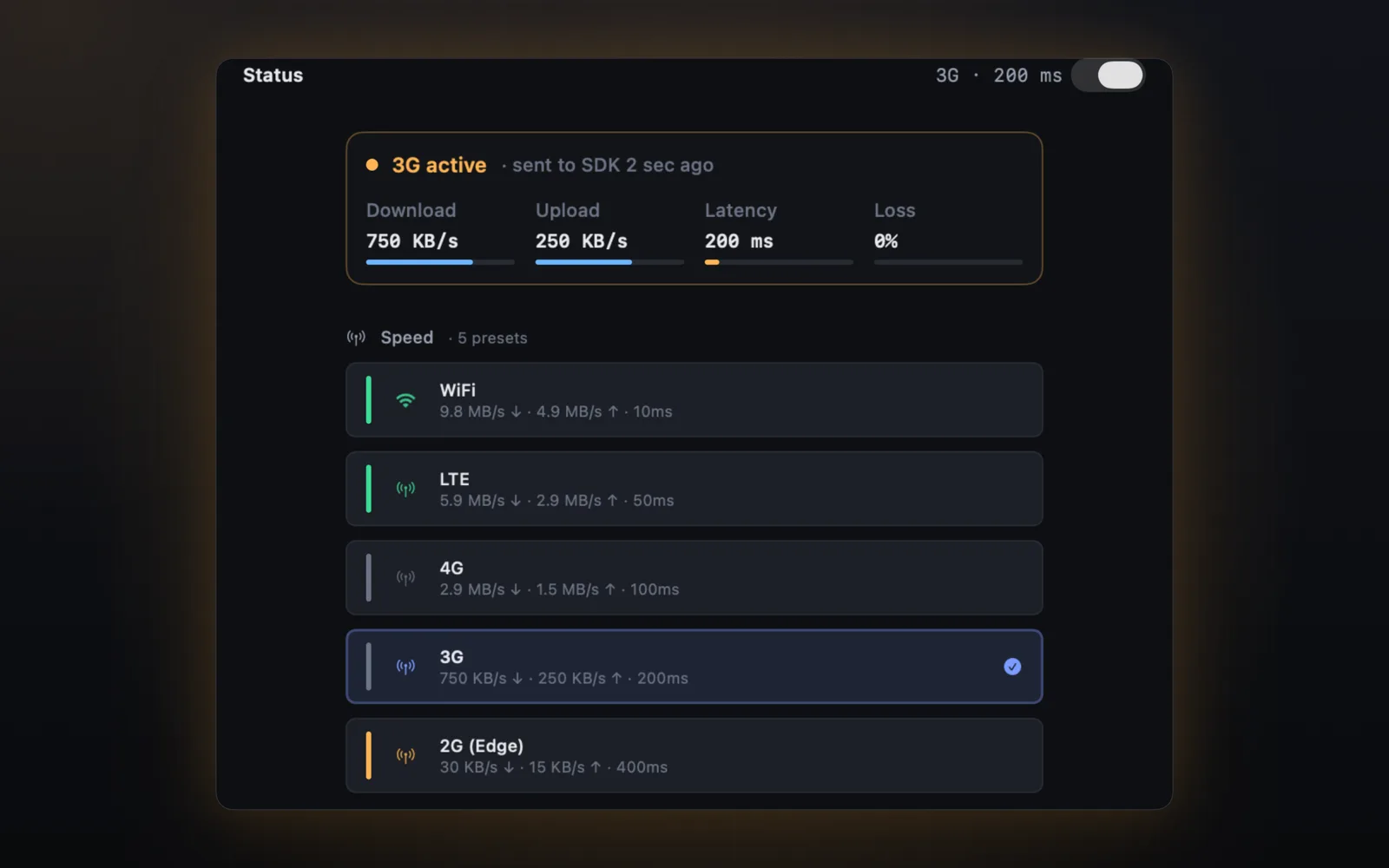
Open Throttling and pick a preset
Run your app, open Throttling in SimKit's panel and choose a preset. You can also add high latency and packet loss. The panel shows the download speed, upload speed, latency and loss now in effect.
- WiFi
- LTE
- 4G
- 3G
- Edge
- Offline
Free · macOS 14 or later · DMG signed and notarized by Apple
Bad networks are more than slow
A steady 3G profile makes every request slower by about the same amount, and most apps get through that. Real connections drop for a few seconds, come back and drop again, or stall on DNS before a request has even started.
SimKit's Network Weather adds those conditions: outages, a flapping connection and slow DNS. They exercise the code a steady profile never reaches, such as retries, timeouts and reconnects.
What to check while throttled
Whichever method you use, go through the app once with the network slowed down and look for these.
- Loading states. Does every screen show that it is waiting, or does it sit blank until the data arrives?
- Empty and error states. When a request times out, does the user get a message and a way to try again? To test a failure on its own, mock an error response.
- Timeouts and retries. Does the app give up after a sensible wait? Does it retry once, or pile up requests? SimKit's Insights point out retried POSTs and duplicate GETs.
- Slow POSTs. Tap a submit button twice while the first request is still pending. Does the app send it twice?
- Offline. Cut the connection. Does the app show what it already has, and recover when the connection returns?
- Images. Do placeholders appear, and does the list still scroll while images load?
- Latency. Compare before and after. SimKit's Analytics shows a latency histogram and p50/p95 over time, with the change since the previous window.
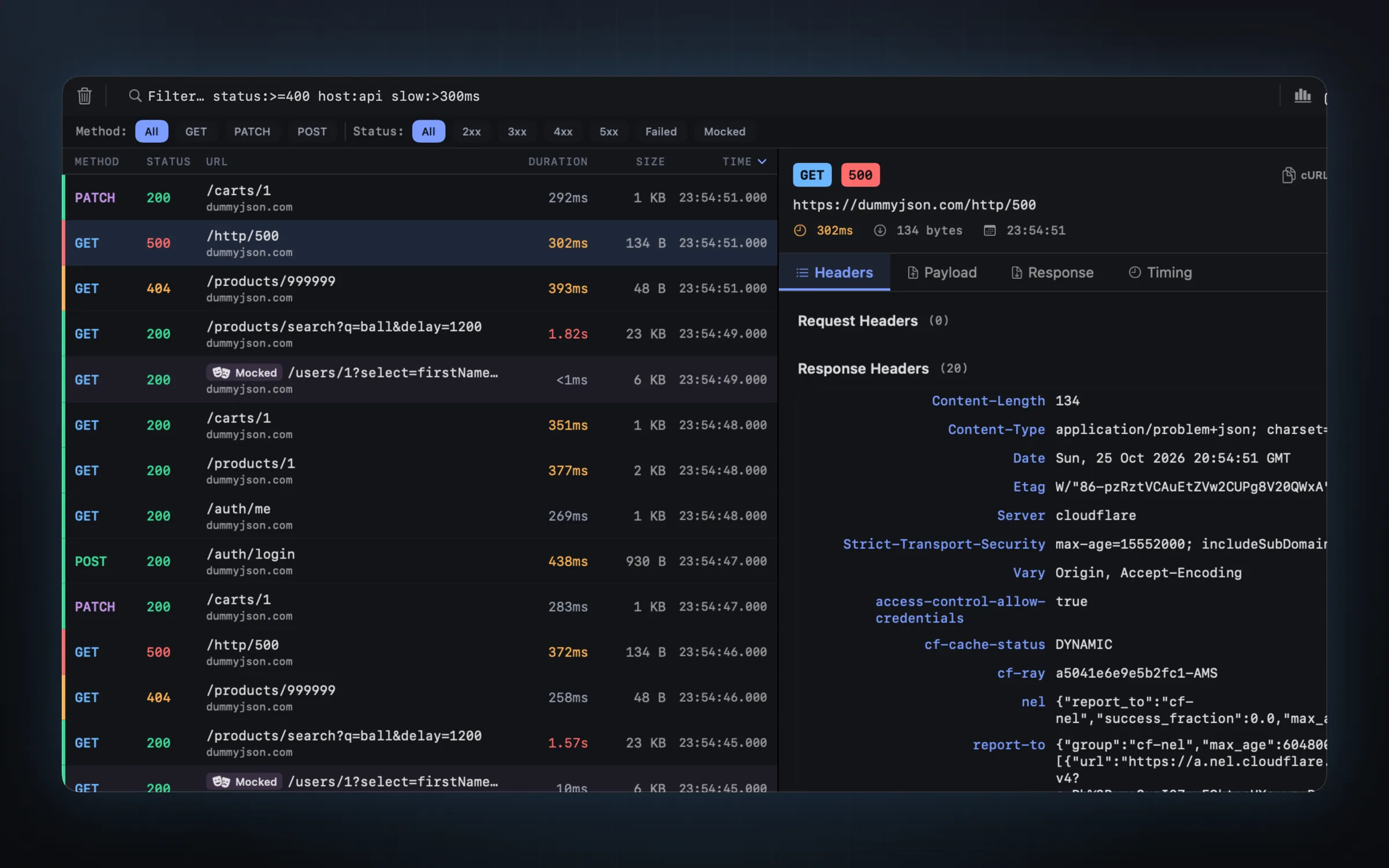
Ask your agent to do it
With the SimKit MCP server, a coding agent such as Claude Code, Cursor or Codex can set the throttle and read the resulting requests itself. It needs SimKit 1.8 or later, with Coding Agents turned on in the Agents tab. The MCP server is in the DMG build; the Mac App Store build doesn't have it yet.
- Throttle the network to 3G and tell me which requests get slow.
claude mcp add simkit -- npx -y simkit-mcpRequirements and limits
- SimKit throttling needs the SDK in your debug build. Enable it inside
#if DEBUGand nothing runs in your release builds. With the SDK it works on the simulator and on a paired iPhone or iPad. - No SDK yet? The DMG build of SimKit can load the SDK into an app on the simulator. That route doesn't reach a real device.
- It shapes your app's traffic only. System services and other apps are not slowed. That is the point, and it is also the limit.
- For a whole-device test, use Network Link Conditioner. It slows everything, which is what that kind of test calls for.
- Versions. SimKit runs on macOS 14 or later. The SDK supports iOS 13 or later.
Questions, answered.
Does the iOS Simulator have a network throttle setting?
No. The simulator uses your Mac's connection and has no network setting of its own. To slow it down you change the Mac's connection, route traffic through a proxy, or throttle inside the app.
Does Network Link Conditioner slow my whole Mac?
Yes, while it is switched on. Every app on the Mac gets the profile you picked, the simulator included. Switch it off when you finish testing.
How do I slow only the simulator or only my app?
Throttle at a proxy such as Proxyman or Charles, which slows the traffic that passes through it, or throttle inside the app with SimKit, which slows that one app.
Can I test offline mode in the simulator?
Yes. SimKit has an Offline preset, and Network Weather adds outages that come and go. With Apple's tool, the 100% Loss profile cuts the connection for the whole Mac.
Can I simulate packet loss?
Yes. SimKit's throttling includes packet loss and high latency for one app. Network Link Conditioner also has lossy profiles, applied to the whole Mac.
Does SimKit's throttling work on a real iPhone?
Yes, when your app has the SDK and the iPhone or iPad is paired with your Mac. Without the SDK, the DMG build can load it into an app on the simulator, but not on a real device.
Is SimKit's throttling free?
Yes. SimKit is free with no account, and throttling is part of it.
Test a bad network without slowing your Mac.
Free on the Mac App Store, or as a DMG.